

Choosing the right tool
ConductorOne offers three tools to help you create relationships between entitlements. Use bound, virtual, or linked entitlements when you have a complex relationship between entitlements that you need to model within ConductorOne or want to present to your colleagues in a simplified way. Here’s an overview of the three tools and when to use each one:Linked entitlements
Linked entitlements are existing relationships between IdP- and non-IdP entitlements that ConductorOne identifies for you. You configure how these entitlements show up in ConductorOne. Use when: You want to clarify the relationship between IdP resources and the apps they grant access to.Bound entitlements
Bound entitlements create relationships between entitlements where access to one (the source) implies access to another (the destination). When a user has access to the source entitlement, ConductorOne automatically shows them as having access to the destination entitlement as well. Use when: You need to model access hierarchies, cross-application dependencies, or any situation where one entitlement logically includes another.Virtual entitlements
Virtual entitlements are special proxy entitlements that exist only in ConductorOne, and that can be bound to other entitlements. Use when: You need to create a clear and easily understood target for user access requests while preserving the underlying complexity of your apps’ configuration.How bound entitlements work
A bound entitlement (also called a proxy binding) links a source entitlement to a destination entitlement. When someone has the source entitlement, ConductorOne records that they also have access to the destination.Bound entitlements are a visibility and tracking layer in ConductorOne. They do not trigger additional provisioning to external systems—provisioning only happens through the source entitlement’s connector.
What bound entitlements do
- Show users as having access to both source and destination entitlements in the UI, reports, and access reviews
- Provide audit trails that indicate access came from the source entitlement
- Automatically add or remove destination access when source access changes
- Support both within-app hierarchies and cross-application relationships
What bound entitlements don’t do
- Trigger separate provisioning operations for the destination entitlement
- Create additional users or permissions in external systems
- Require the destination entitlement to have its own connector
Types of bindings
System-managed bindings are created automatically when a connector discovers role hierarchies in an external system (for example, AWS IAM policy relationships). You can enable or disable these bindings, but you cannot delete them. Manual bindings are created by administrators to model relationships that ConductorOne doesn’t automatically detect. You have full control over their lifecycle.When to use bound entitlements
Role hierarchies within an application
When an application has built-in role hierarchies (for example, an Admin role that includes all Editor and Viewer permissions), create bindings so access reviews accurately reflect what users can actually do. Example: In Salesforce, Admin includes Editor and Viewer permissions. Create bindings:- Salesforce Admin → Salesforce Editor
- Salesforce Admin → Salesforce Viewer
- Salesforce Editor → Salesforce Viewer
Cross-application access dependencies
When access to one entitlement implies access to entitlements in other applications, create bindings to track these relationships. Example: Members of your “Production Support” Okta group need VPN access, SSH access, and monitoring dashboard access. Create bindings from the Okta group to each of these entitlements. Access reviews now show all four access types together, even though provisioning only happens through Okta.Nested group memberships
When directory services have nested groups, create bindings to show the full access picture. Example: In Active Directory, “Engineering Leadership” membership automatically includes “Engineering Team” membership. Create a binding so reviews show both.Access reviews with bound entitlements
When performing access reviews:- Reviewers see both direct and derived access. Derived access is marked to show which source entitlement granted it.
- Revoking source access automatically removes derived access. If you revoke someone’s Admin role, their derived Editor and Viewer access is also removed.
- Derived access can only be revoked at the source. To remove derived access, you must revoke the source entitlement that granted it.
Set up a linked entitlement
When ConductorOne identifies a relationship between an entitlement in an IdP and one in a standalone application, that relationship is called a linked entitlement. You’ll find any linked entitlements ConductorOne has identified on the Linked entitlements tab on an application’s details page. You can set how you want ConductorOne to treat each linked entitlement. To set up a linked entitlement:On an app’s details page, go to the Entitlements tab and click the Linked entitlements icon at the top right corner of the entitlements table (the icon looks like a Venn diagram).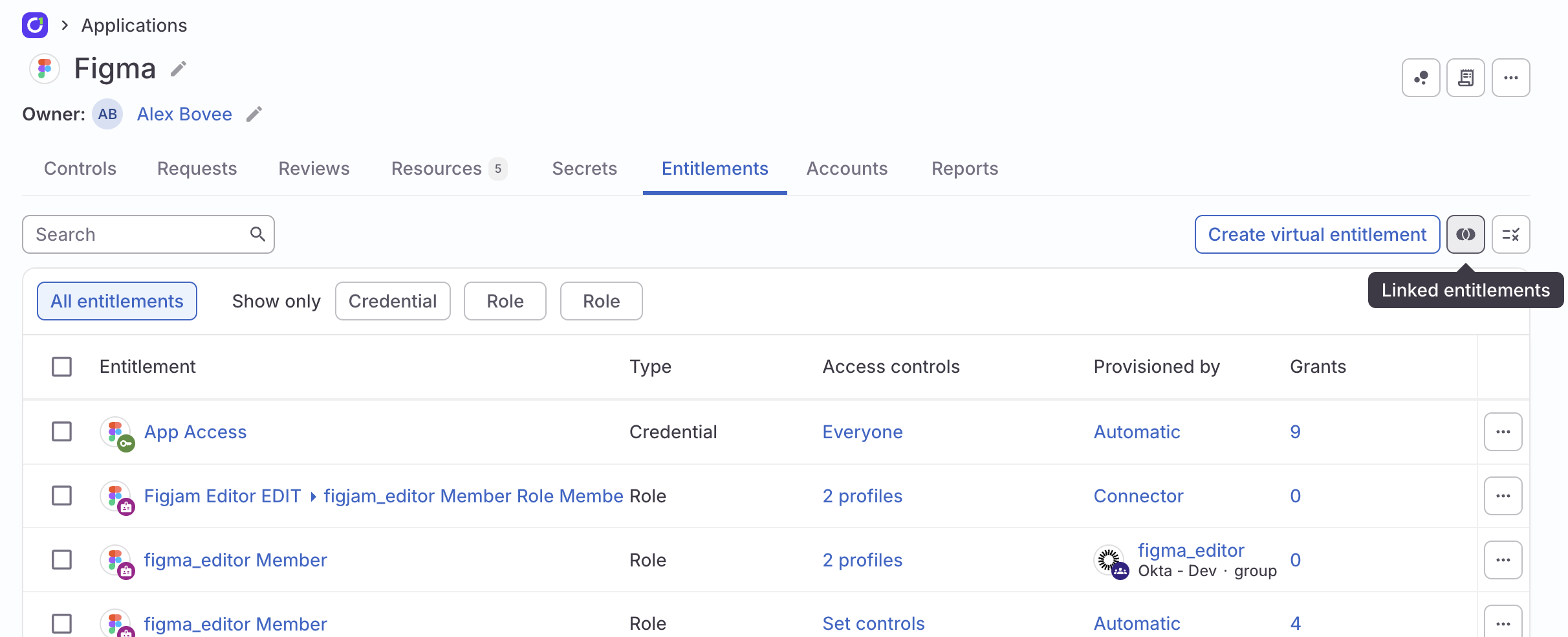
For each IdP entitlement ConductorOne has identified as linked to the app, choose an action:
- Create virtual role: Set up a new role in the app that will be linked to the IdP entitlement. This role will only exist in ConductorOne, and will function as an alias for the IdP entitlement. Your colleagues can request and review the role, which will appear as part of the app, but they will in actuality be requesting or reviewing the IdP entitlement.
- Provision access for: Link the IdP entitlement to an existing entitlement in the app. When your colleagues request or review the app entitlement, they will also be requesting or reviewing the IdP entitlement.
- Skip: Do nothing.
Add a manual binding
Linked entitlements automatically create entitlement bindings. You can also manually set up a binding between any two entitlements, so that granting access to one entitlement also grants access to the other. To add a manual binding:Navigate to an entitlement’s details page (for clarity we’ll call this the “active entitlement” in these instructions) and click Bindings.
Select whether the binding is Incoming (the active entitlement is granted by another entitlement) or Outgoing (the active entitlement grants another entitlement).Select the application that contains the entitlement you’re binding the active entitlement to.
Create a virtual entitlement
Virtual entitlements are ideal when you need to create a custom target entitlement that is easy for users to understand. A virtual entitlement exists only in ConductorOne (it does not get written back to the source application). You can bind it to other entitlements, using the virtual entitlement as a proxy, then include the virtual entitlement in access profiles and access review campaigns. To create a virtual entitlement:Optional. If ConductorOne has identified any entitlements in your IdP that are linked to this app, you have the option to select one to be linked to the custom app.